Assign Campaigns to Device
Now it’s time to assign your campaign to specific devices.
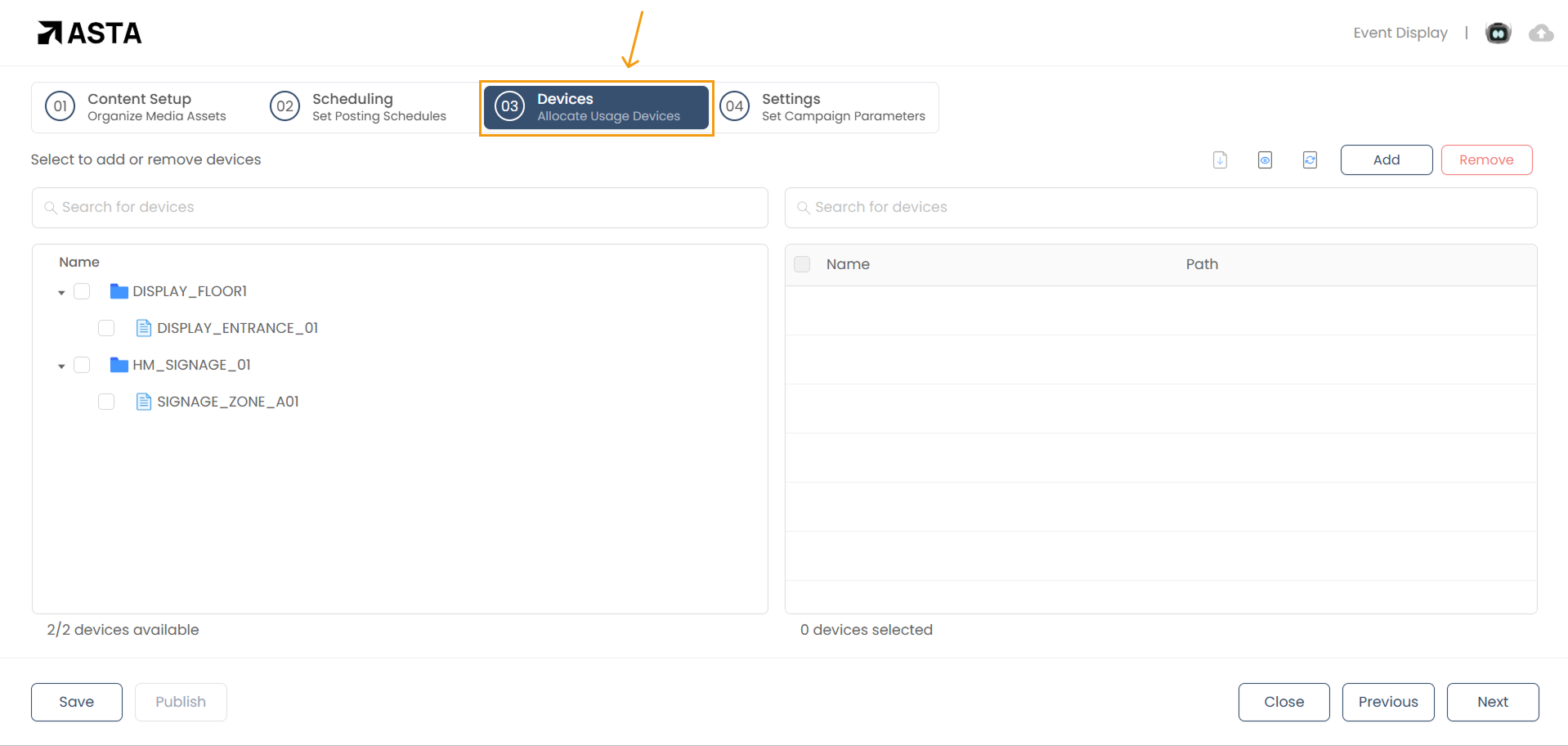
Open the Devices Section
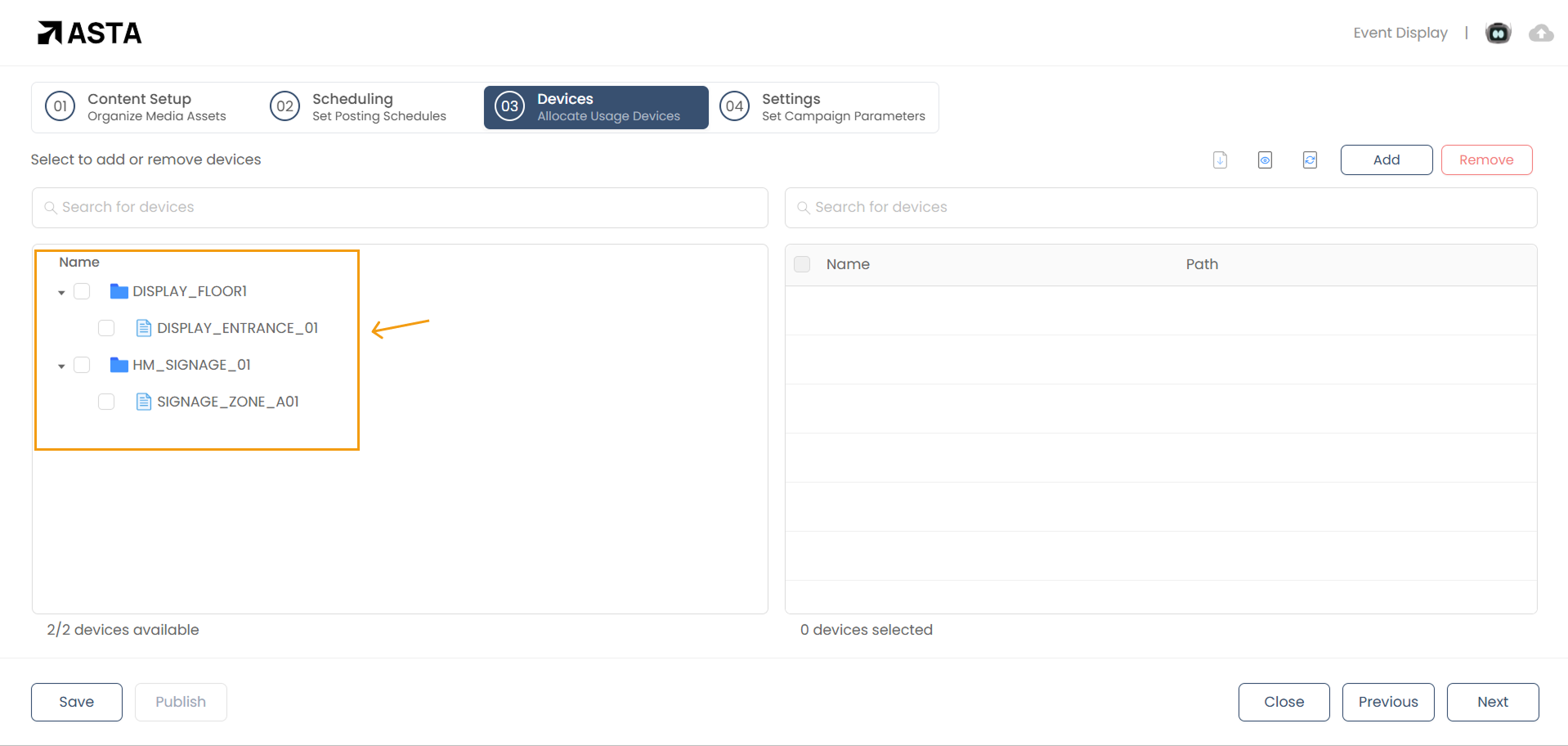
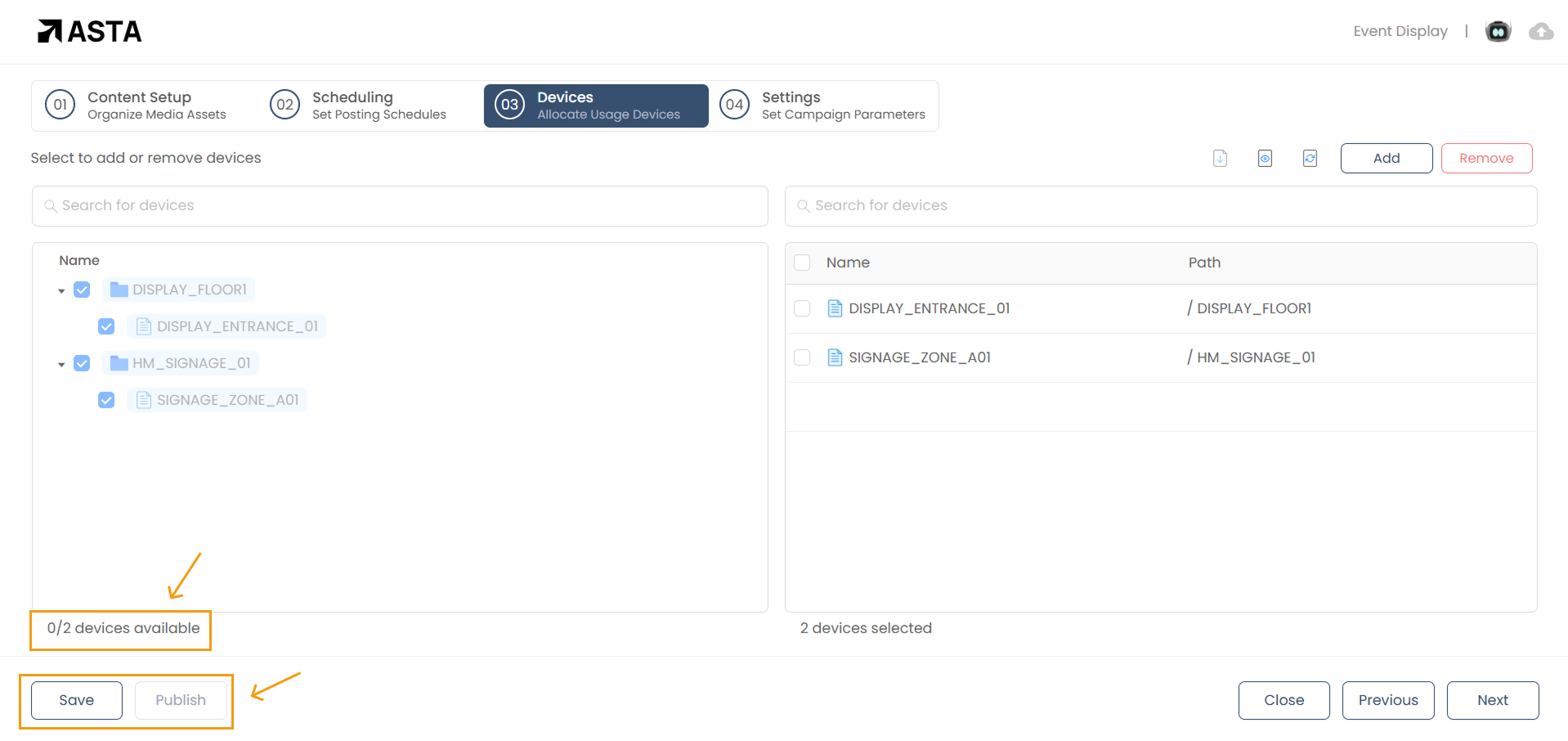
Navigate to the Devices section within your campaign. This is where you’ll see all the devices available for assignment, organized into folders and files.
Select Devices
- Single Device: You can assign the campaign to a specific device, such as a particular screen in a store.
- Multiple Devices or All Devices: If you want the campaign to appear on multiple screens or all devices in your network, simply select them all.
To select devices, check the boxes next to the ones you want to include in the campaign.
View Device Information
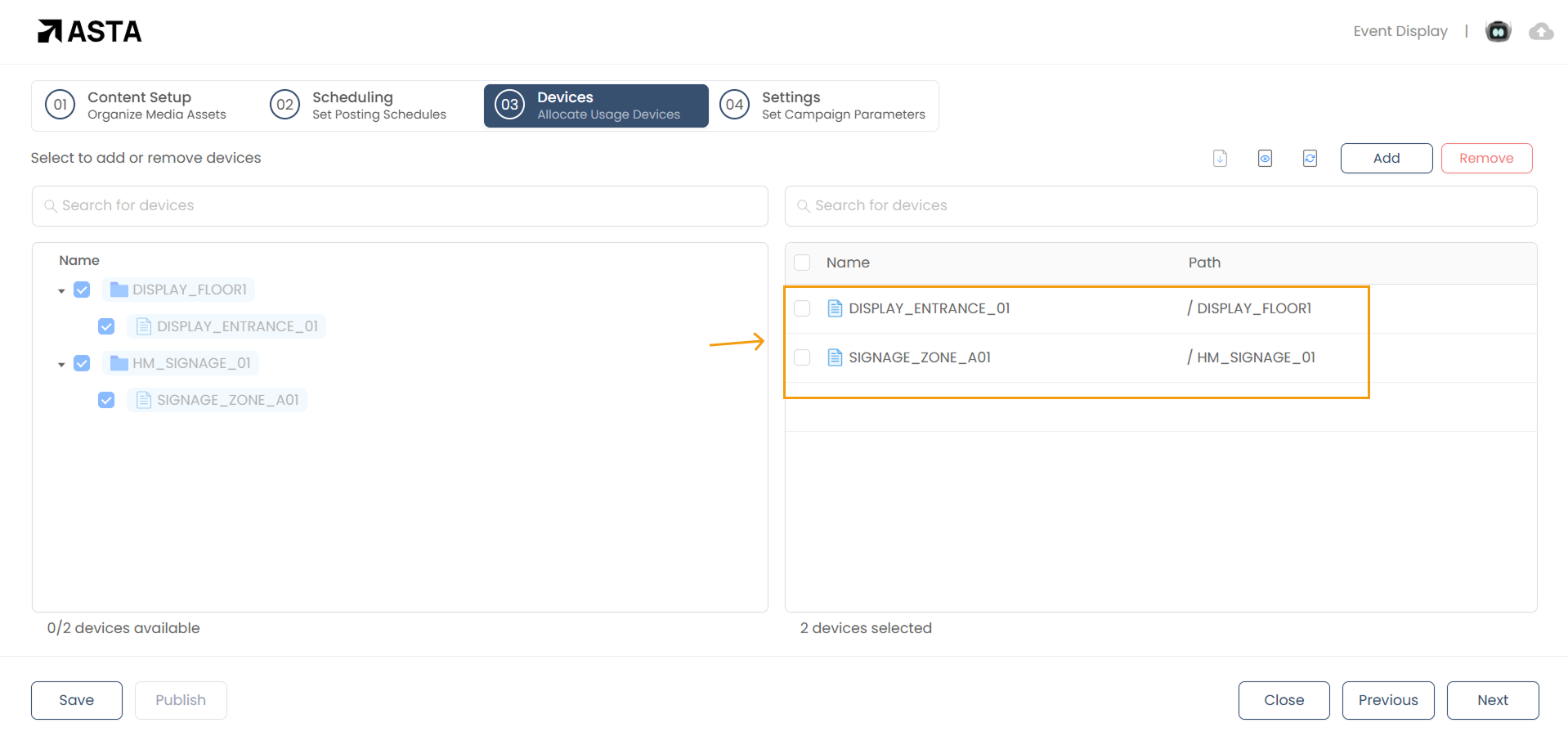
The device list provides helpful details:
- The Name column displays the device names.
- The Path column shows the relative file path of each device.
Add or Remove Devices
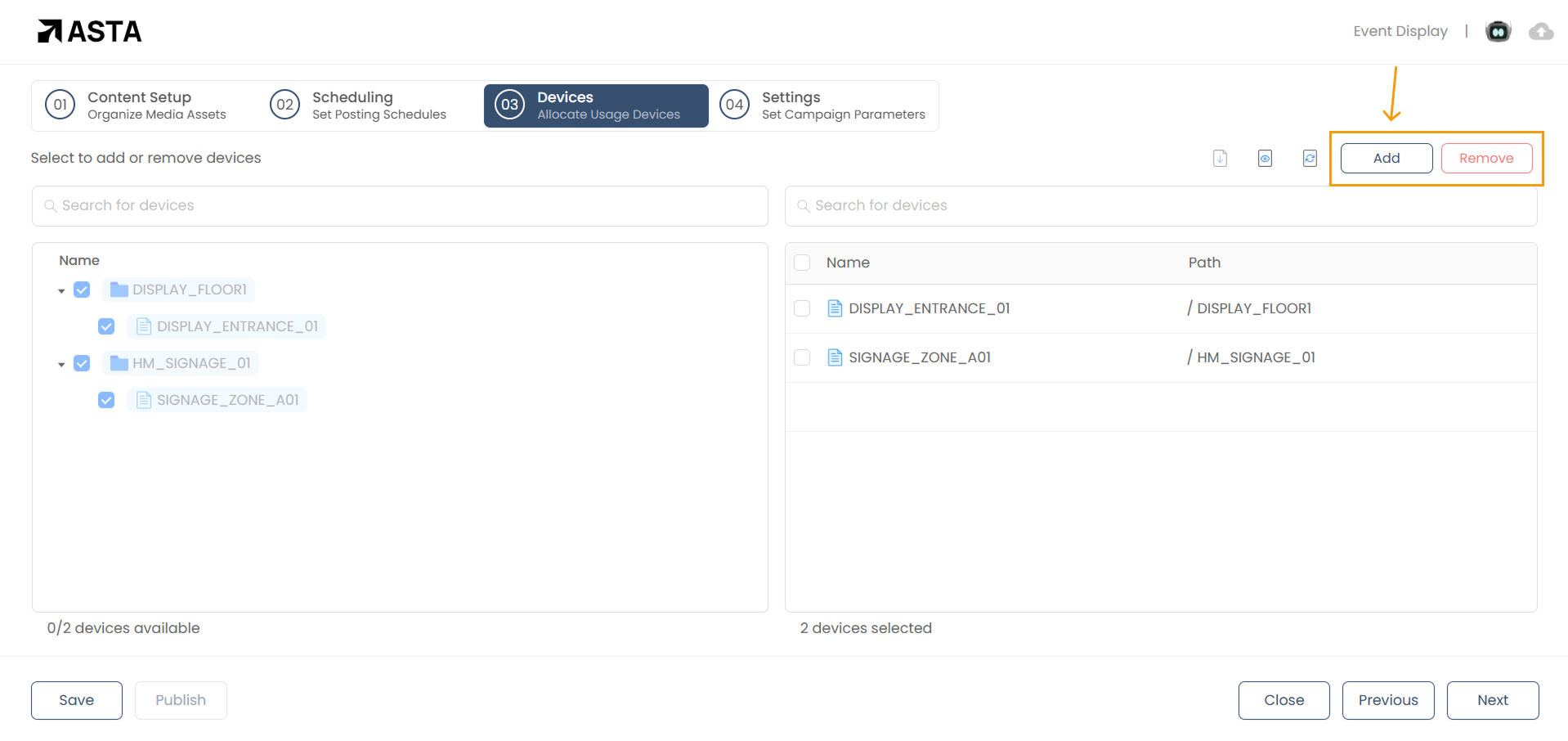
On the right-hand side, you’ll find options to manage devices:
- Add Devices: Use the Add button to include new devices in the campaign.
- Remove Devices: Select devices you no longer want and click Remove.
Finalize Your Selection
At the bottom of the list, you’ll see a summary showing:
- The total number of devices available.
- The number of devices you’ve selected (e.g., “2 devices selected”).
Once you’ve confirmed your selection, click on Save to save the campaign or Publish to deploy it to the selected devices.
Additional Tips for Campaign Creation
At the bottom of the list, you’ll see a summary showing:
- Experiment with Layouts: Adjust zones or add more zones to create a more dynamic and engaging layout.
- Check Media Formats: Ensure that your media files are in supported formats (e.g., MP4, H.264) to avoid compatibility issues.
- Monitor Device Performance: Regularly check your devices to ensure that content is playing smoothly and as intended.
- Optimize for Device Screen Sizes: Ensure your content fits well within the dimensions of the target devices, adjusting layout or media sizes if necessary.
By following these steps and customizing each media type to fit your needs, you can create effective, engaging campaigns with Asta. Whether you're showcasing promotional content, displaying live updates, or sharing web content, the flexibility of Asta enables you to meet your digital signage requirements.