How to Create a Command
Creating commands in Asta is a straightforward process that allows you to manage and automate tasks across your devices. This guide will walk you through the steps to create a command, name it, configure its settings, schedule it, and allocate devices for execution.
Step 1: Accessing the Commands List Page
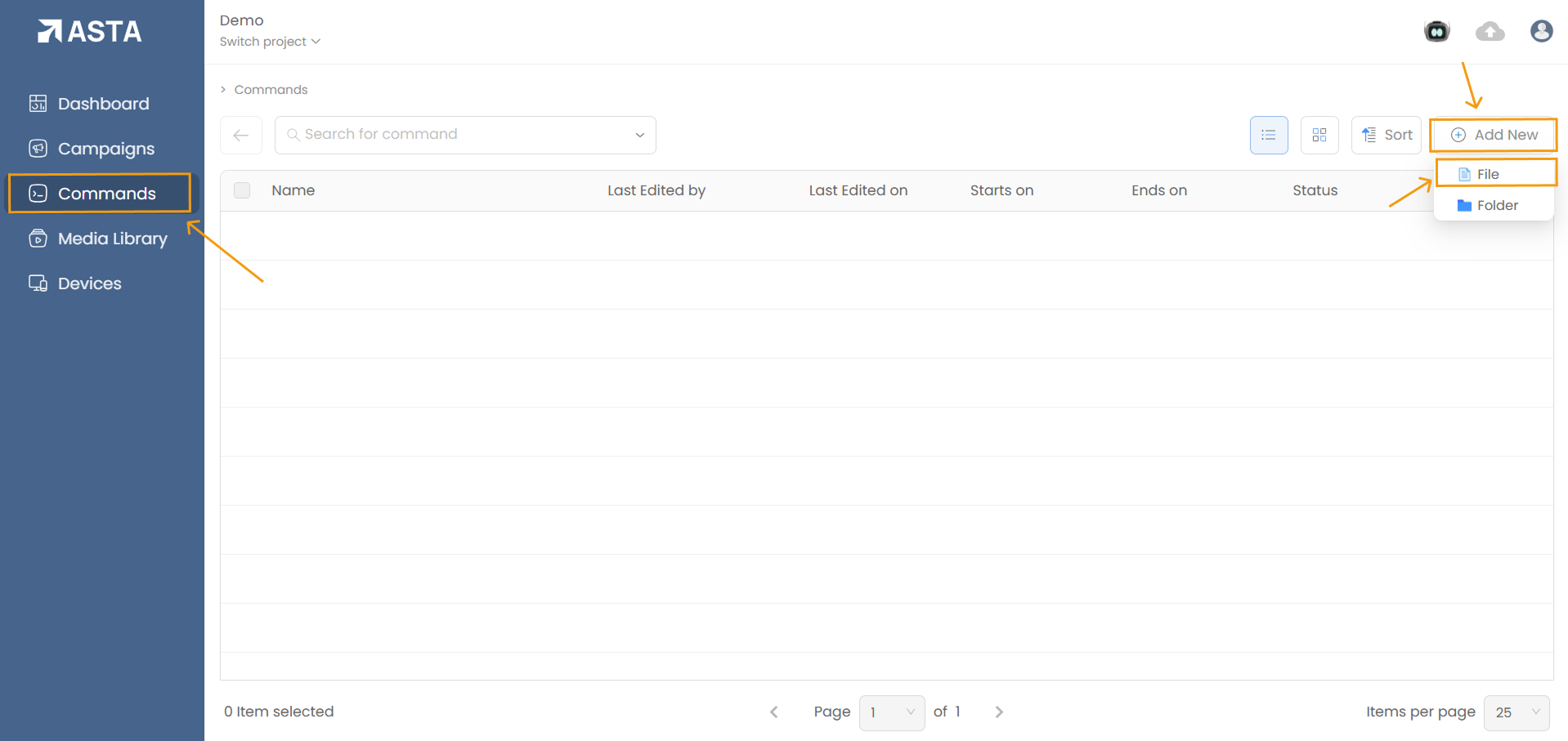
To begin creating a command, navigate to the Commands List Page.
- Option 1: Click on the Add New button at the top-right corner and select File.
- Option 2: Right-click anywhere on the Commands List Page, hover over Add New, and select File.
Step 2: Naming Your Command
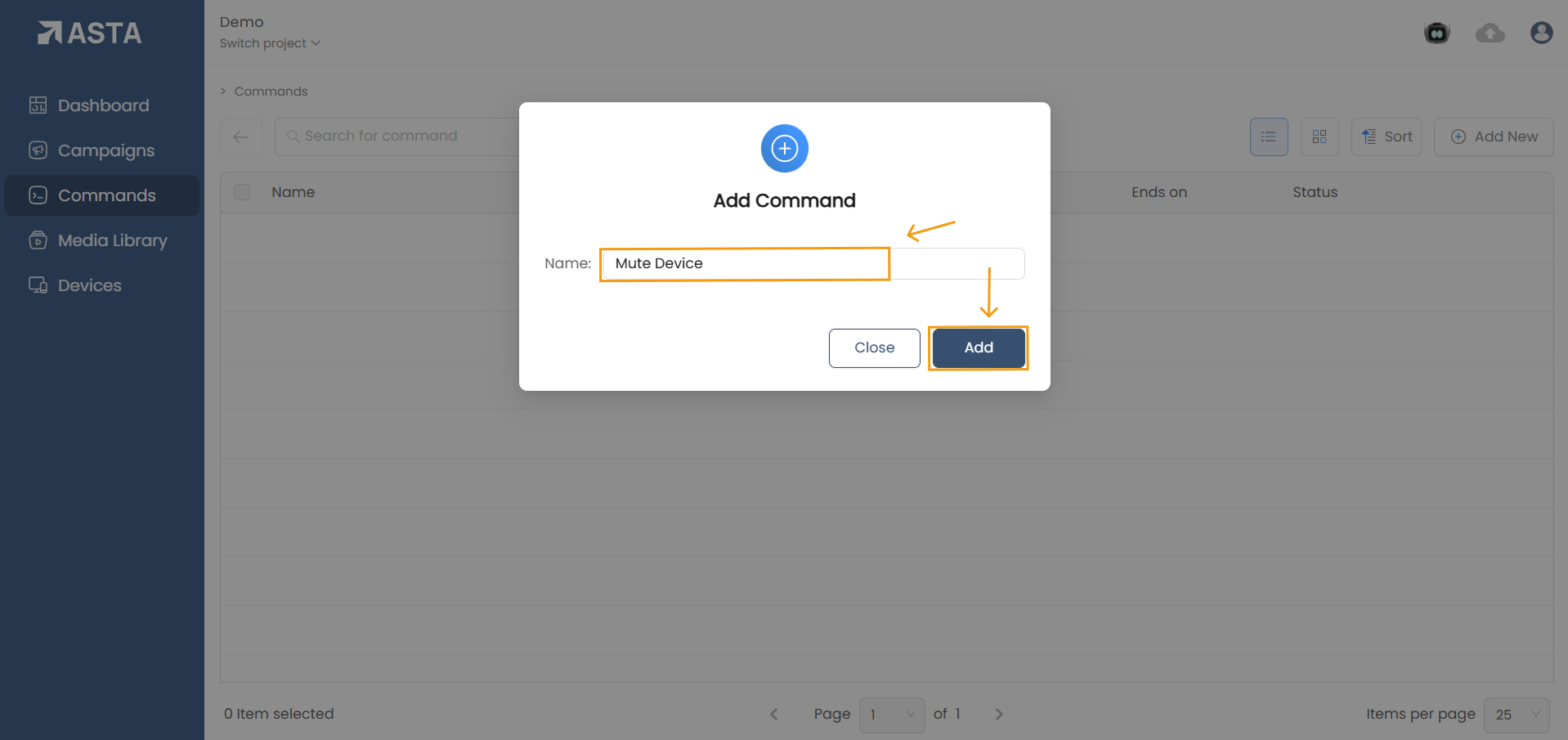
Once you’ve initiated the creation process, you’ll be prompted to name your command. Choose a descriptive name that clearly indicates the purpose of the command (e.g., “Mute Device” or “Restart CMS”).
- Enter the name in the provided field.
- Click Add to proceed.
After naming, you’ll be redirected to the Command Page for further configuration.
Step 3: Configuring the Command
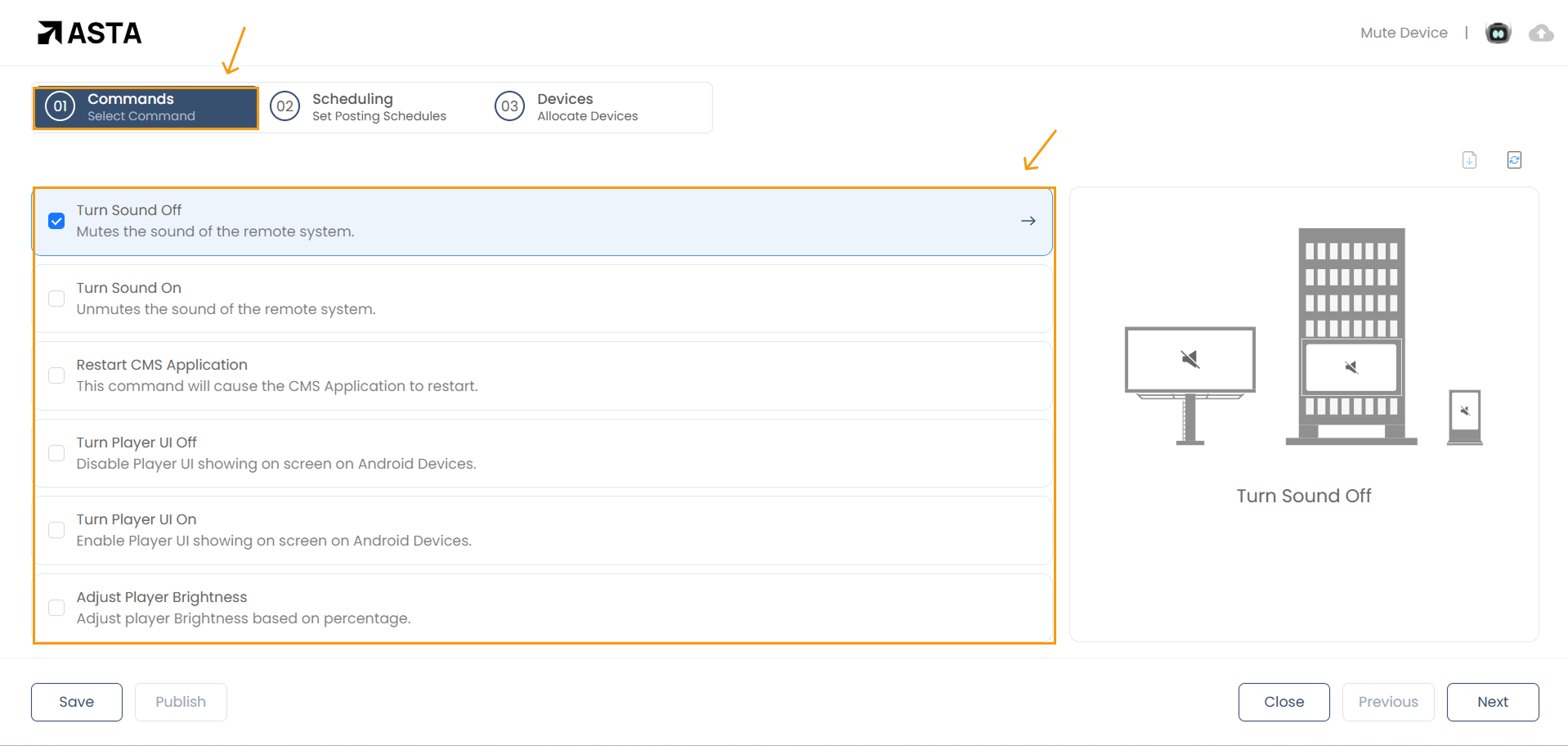
In the Commands section of the Command Page, you can select the specific action your command will perform. The available options include:
- Turn Sound Off: Mutes the device.
- Turn Sound On: Unmutes the device.
- Restart CMS Application: Restarts the CMS application to resolve stability issues.
- Turn Player UI Off: Displays a black screen and disables player UI operations.
- Turn Player UI On: Reactivates the player UI.
- Adjust Player Brightness: Sets the device brightness (0-100%).
- Adjust Player Volume: Sets the device volume (0-100%).
Select the desired command from the dropdown menu and proceed to the next step.
Step 4: Scheduling the Command
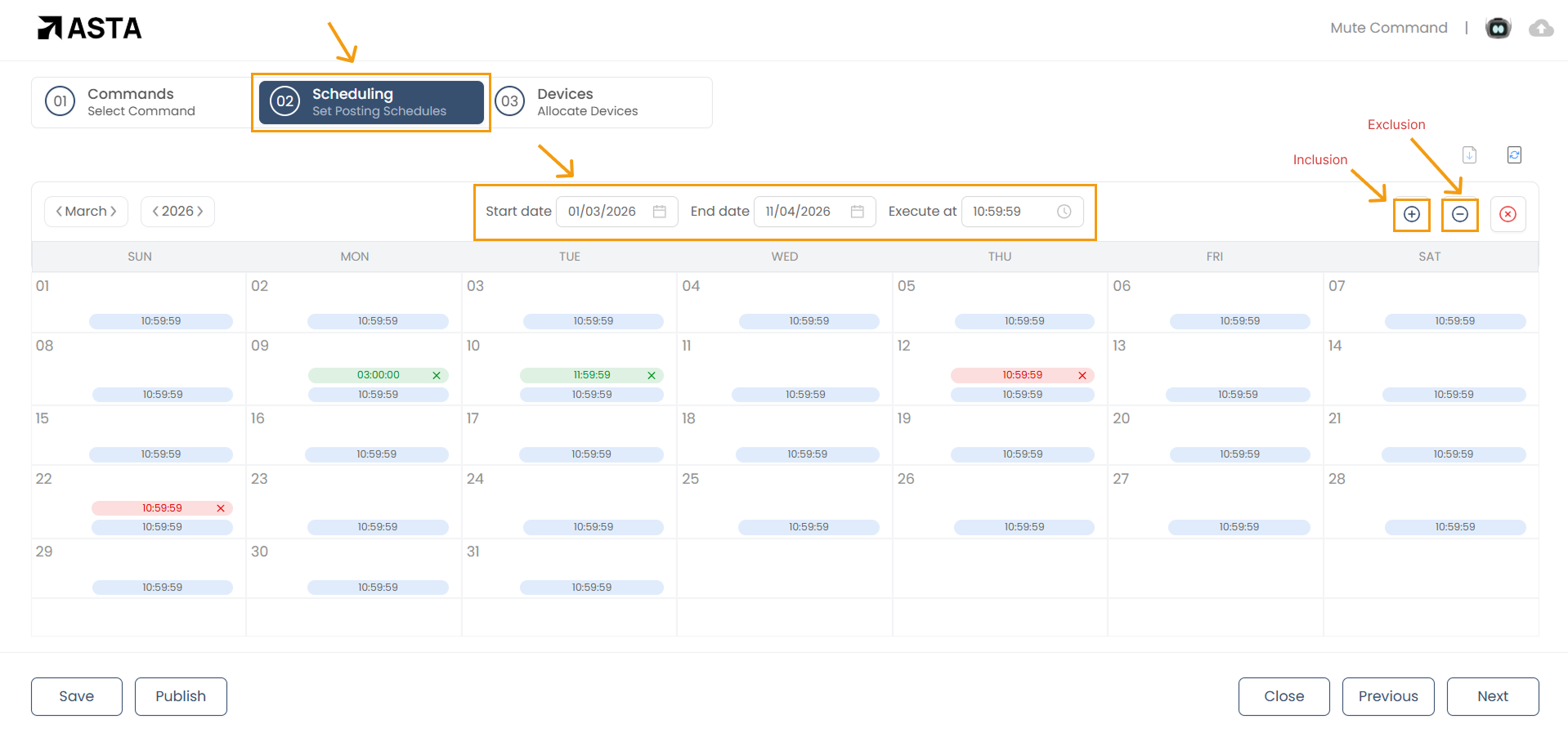
The Scheduling section lets you specify when the command should execute. Here’s how to set it up:
- Set Start and End Dates: Define the dates during which the command will be active.
- Set Execution Time: Choose the exact time for the command to execute.
- Add Inclusions/Exclusions:
- Inclusions/Additions: Add specific times for the command to execute within the active period.
- Exclusions: Specify times to skip execution.
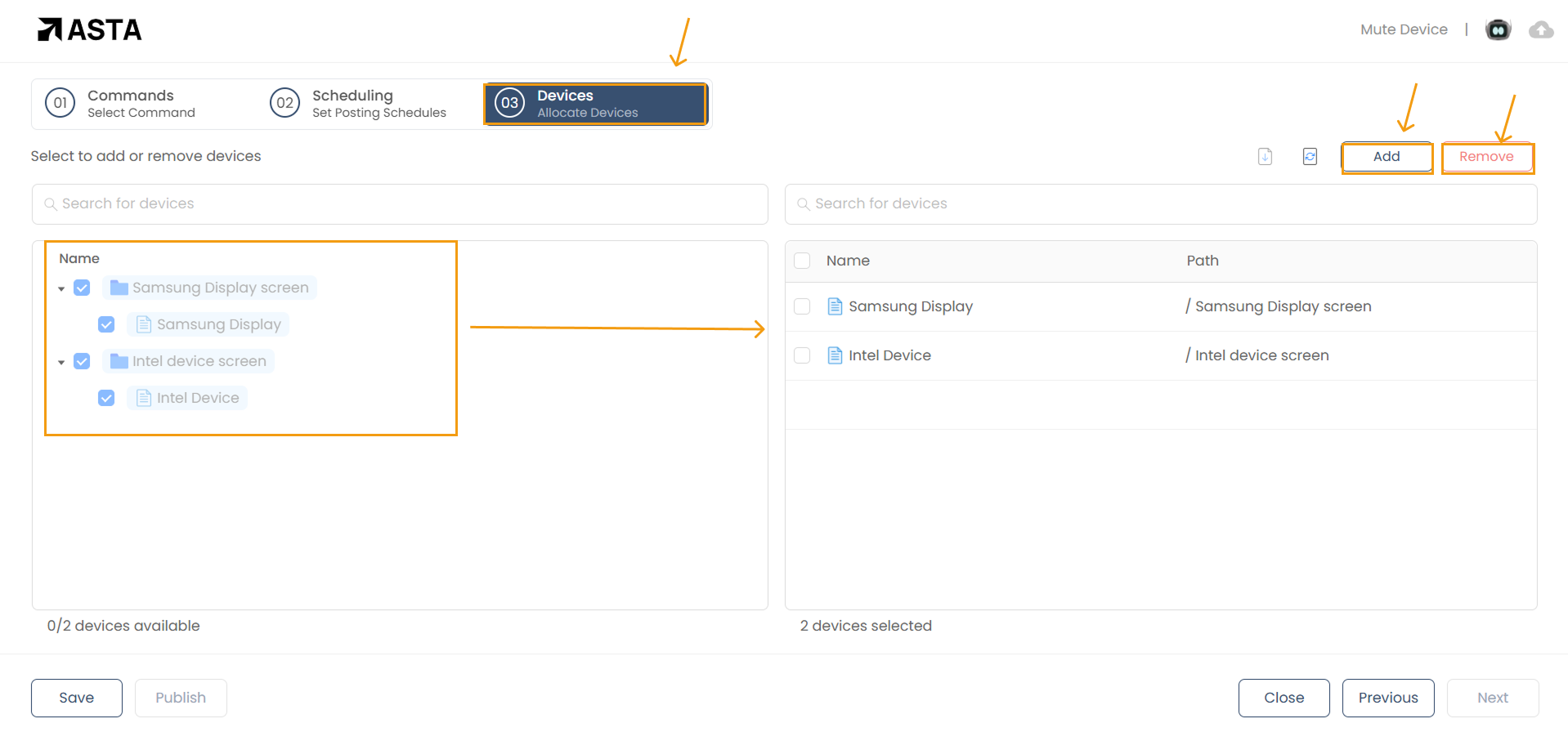
Step 5: Allocating Devices
In the Devices section, assign the devices where the command will execute:
- Available Devices: View a list of all devices organized in folders.
- Selecting Devices: Check the boxes next to the devices you want to include.
- Adding Devices: Click Add to move selected devices to the “Selected Devices” list.
- Removing Devices: Use the Remove button to exclude devices from the command.
Additional Tips
- Organize Commands: Use folders to group similar commands for better management.
- Monitor Device Status: Ensure devices are online before publishing commands.
- Avoid Overlapping Commands: Schedule commands carefully to prevent conflicts.
By following these steps, you can efficiently create and manage commands in Asta, ensuring smooth operations across your devices.